TL;DR
To build a knowledge base: pick your audience (internal, external, or both), audit existing content from Slack and support tickets, design a flat 5-8 category taxonomy, then choose a tool that fits your stage. Notion works for small internal wikis. Dokly (free plan, $99/mo Team, as of October 2026) handles public KBs. Mintlify ($150+/mo) is for enterprise. Launch with 10-15 articles using consistent templates, then maintain it with assigned owners and 90-day review cycles.
A knowledge base is a structured library of articles that helps users — customers or employees — solve problems on their own. Building one means making four decisions in order: who it serves, what's in it, how it's organized, and where it lives. Most teams reverse this order, pick a tool first, and end up with a graveyard of half-written articles.
This guide walks through the actual sequence. By the end, you'll have a published knowledge base with real content in it.
Decide what kind of knowledge base you're building#

Before anything else, pick one:
- External (customer-facing) — public articles that reduce support tickets. Tone is plain English. SEO matters. Think Stripe's help center.
- Internal (team wiki) — onboarding docs, runbooks, processes, internal tools. Tone is direct and assumes context. Security matters.
- Hybrid — both, but kept separate. Same tool, different projects.
Don't try to make one knowledge base serve both audiences. The depth, tone, and access controls are too different. A customer reading "how do I reset my password" doesn't need the engineering runbook for the auth service, and your engineers don't need the marketing-approved version of an outage post-mortem.
If you're trying to build a customer-facing support knowledge base, your goal is deflection — answering questions before someone files a ticket. If you're trying to set up an internal team wiki, your goal is reducing the same questions getting asked in Slack every week.
Pick one. Write it down. Every later decision flows from this.
Audit what you already have#
Don't start from a blank page. You already have most of the content, it's just scattered.
Spend two hours pulling from these sources:
- Support tickets — export the last 90 days. Group by topic. The top 10 topics are your first 10 articles.
- Slack — search
#support,#engineering,#help. Threads that got more than 5 replies are usually documenting something undocumented. - Google Docs / Notion — find the half-finished onboarding doc, the "how we deploy" doc, the runbook from the last incident.
- Loom recordings — transcribe them. A 10-minute walkthrough becomes a great how-to article.
The 80/20 of audit
Ask your support lead: "What are the five questions you answered three or more times this month?" Those are your launch articles. Skip everything else for V1.
You'll come out of this with a messy list of 30-50 topics. That's the raw material. Don't write yet.
Design the structure before you pick a tool#
This is the step everyone skips and everyone regrets.
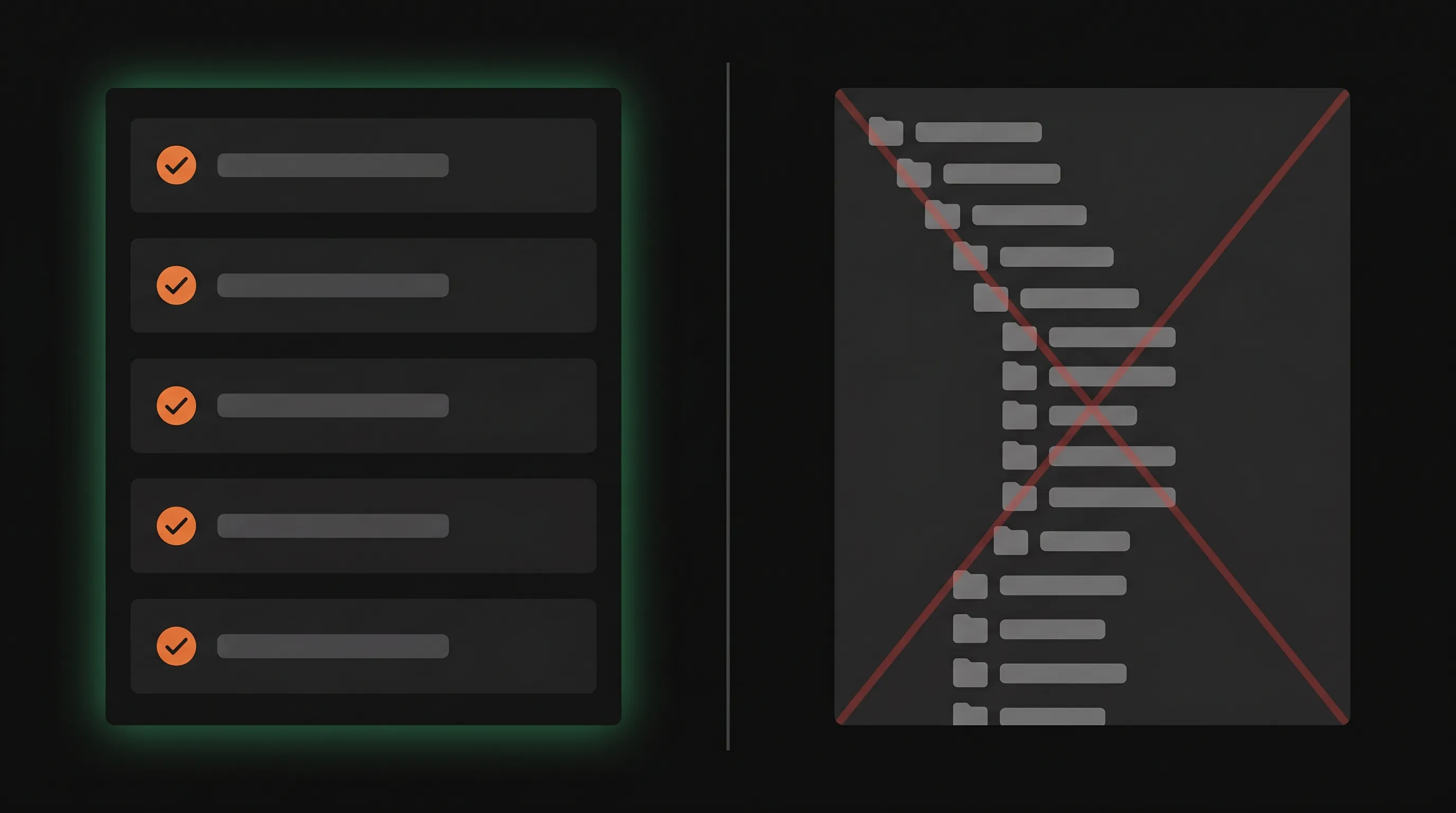
Group your topics into 5 to 8 top-level categories. Not 20. Categories should map to user goals — the jobs people are trying to do — not to your internal team structure. "Billing" is a user goal. "Stuff the finance team owns" is not.
A good test: a new user lands on your KB homepage. Can they guess which category their question lives in within 3 seconds? If not, your taxonomy is built around your org chart, not their problem.
For an external KB, common categories are:
- Getting started
- [Product area 1, 2, 3]
- Billing & account
- Integrations
- Troubleshooting
For an internal wiki:
- Onboarding
- Engineering
- Product & design
- People & ops
- Company
This taxonomy decision matters more than your tool choice. Nielsen Norman Group's research on information scent shows users decide whether your nav is useful in seconds based on whether the labels match what they expect. If the categories are wrong, no search bar saves you.
For article structure within categories, the Diátaxis documentation framework is the cleanest model: every article is one of tutorial, how-to, reference, or explanation. Most KB articles are how-tos. Don't mix types in one article.
Pick a platform that fits your stage#
Now — and only now — pick a tool. Match it to your stage and audience, not to what's trending.
| Tool | Best for | Pricing (October 2026) | Free tier | Public KB |
|---|---|---|---|---|
| Notion | Internal wiki, under 20 people | $10/user/mo | Yes | Limited |
| Dokly | Public KB, startup-friendly | Free, $99/mo Team | 1 project, unlimited pages | Yes |
| GitBook | Mid-market docs + KB | $65+/user/mo | Limited | Yes |
| Mintlify | Enterprise API docs | $150+/mo | No | Yes |
| Confluence | Large-company internal | $6/user/mo | Up to 10 users | Limited |
| Zendesk Guide | Support-team-led KB | $55+/agent/mo | No | Yes |
A few honest takes:
- 3-person startup, internal use: Notion's free plan is fine. Don't overthink it.
- 3-person startup, public KB: Dokly's Free plan gets you live on a subdomain with built-in search at $0, and Team at $99/mo adds a custom domain. Notion's public pages have ugly URLs and no real search.
- 20-50 person company, public KB: Dokly Team at $99/mo or GitBook. Mintlify is overkill unless you're an API-first company with budget.
- Support team owns the KB: Zendesk Guide if you already use Zendesk. Otherwise it's expensive for what you get.
- Engineering-heavy internal docs: GitBook or Dokly. Both handle code blocks, MDX, and version control properly.
For a deeper breakdown, here's an honest comparison of knowledge base software with real prices and a guide on what good knowledge base software actually does.
Don't pick Confluence for a public-facing KB. It's an internal wiki tool. The public sharing options are clunky and the URLs are not SEO-friendly.
Set up your knowledge base (step by step)#
These steps use Dokly because it's what we know best, but the sequence applies to most platforms. Here's a one-minute walkthrough of going from zero to a live knowledge base:
Create your project
Sign up and create one project per audience. If you're doing both internal and public, create two separate projects. Name them clearly: "Help Center" (public) and "Team Wiki" (internal).
Add your top-level categories
Create the 5-8 categories from your taxonomy as sections. Don't create subcategories yet — flat is faster to navigate.
Help Center/
  Getting started/
  Billing/
  Integrations/
  Troubleshooting/
Import or paste your audit content
Paste your raw content from the audit into draft articles. One topic per article. Don't polish yet — get them in the system first.
Apply article templates
Pick a template (how-to, troubleshooting, or concept — see the next section) and rewrite each draft to match. Consistency matters more than perfection.
Configure search and navigation
Turn on search. Add a sidebar with your categories. Verify a new visitor can land on the homepage and find a known article in under 10 seconds.
Set up your domain
For a public KB, use a subdomain like help.yourcompany.com or docs.yourcompany.com. Here's how to host your KB on your own domain. Don't launch on the platform's default URL — it kills SEO.
Publish and announce
Make it public. Add a link from your product, your footer, your support email signatures, and your in-app help widget.
That's a working knowledge base. The hard part — keeping it useful — comes next.
Write articles people actually read#
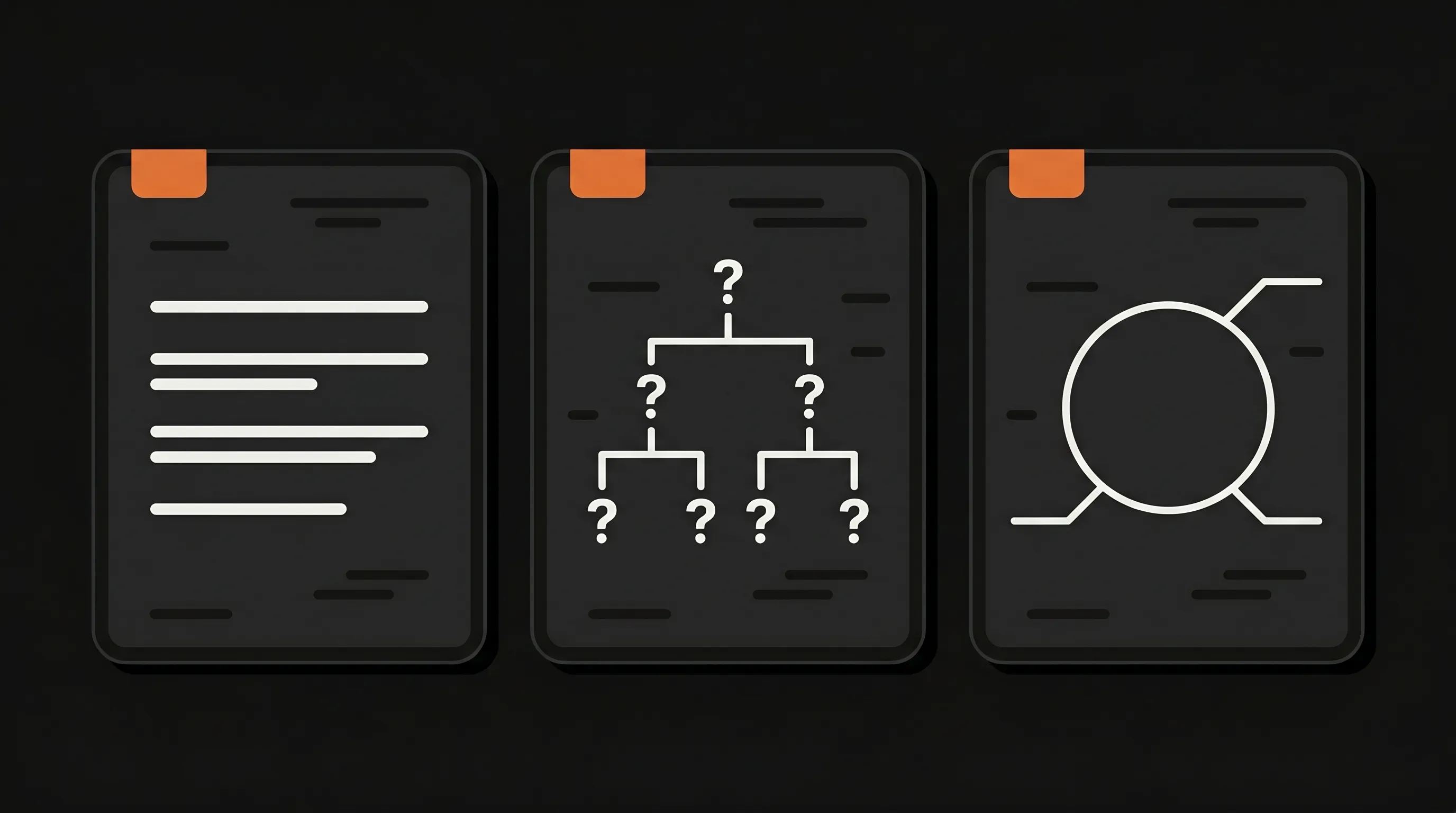
Pick three templates. Use them religiously. Inconsistent article structure is the single biggest reason KBs feel low-quality.
Template 1: How-to article#
For task-focused content. ~300-600 words.
# How to [accomplish specific task]

[1-sentence outcome: "By the end, you'll have X."]

## Before you start
- Prerequisite 1
- Prerequisite 2

## Steps
1. [Imperative verb] [object]. [One-sentence why.]
2. [Next step]
3. [Next step]

## Verify it worked
[How to confirm the task succeeded.]

## Related articles
- [Link]
- [Link]
Example title: "How to invite a teammate to your workspace."
Template 2: Troubleshooting article#
For error-driven content. This is where the search-from-error-message traffic comes from. ~200-500 words.
# [Exact error message or symptom]

## What's happening
[1-2 sentence plain-English explanation of the cause.]

## How to fix it
1. [Most common fix first]
2. [Second most common fix]
3. [Rare-but-possible fix]

## Still not working?
[How to escalate — link to support, include logs, etc.]
Put the literal error string in the article. Users paste error messages into Google. If your article doesn't contain the exact text, you don't rank.
Template 3: Concept / explanation article#
For "what is X" or "how does X work" content. ~500-1200 words.
# What is [concept]?

[Definition in the first 50 words.]

## Why it matters
[Concrete stakes, not abstract benefits.]

## How it works
[Mechanism, with an example.]

## Common misconceptions
[What it's NOT.]

## Related concepts
- [Link]
Stripe's documentation is the gold standard here — every concept page opens with a tight definition, a concrete example, and links to related how-tos.
Length rule
If a how-to article is over 800 words, you're probably trying to do two things in one article. Split it.
Make it findable: search, navigation, and SEO#
The best article is useless if no one finds it.
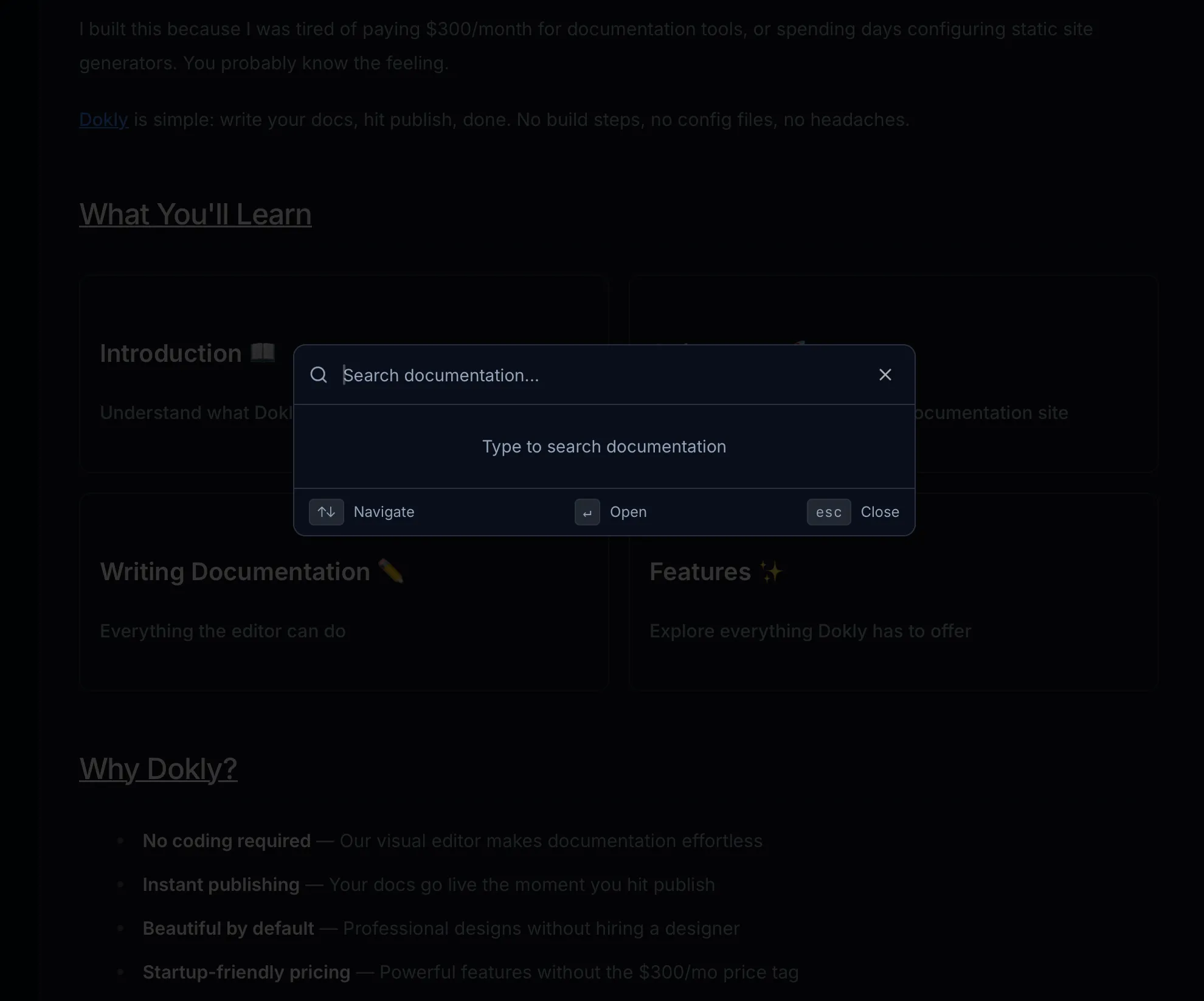
Search. Most users skip the sidebar and search. Make sure your platform's search is fuzzy (handles typos), searches body text not just titles, and surfaces results in under 200ms. If your tool's search is bad, users will give up and file a ticket — which is the opposite of why you built the KB.
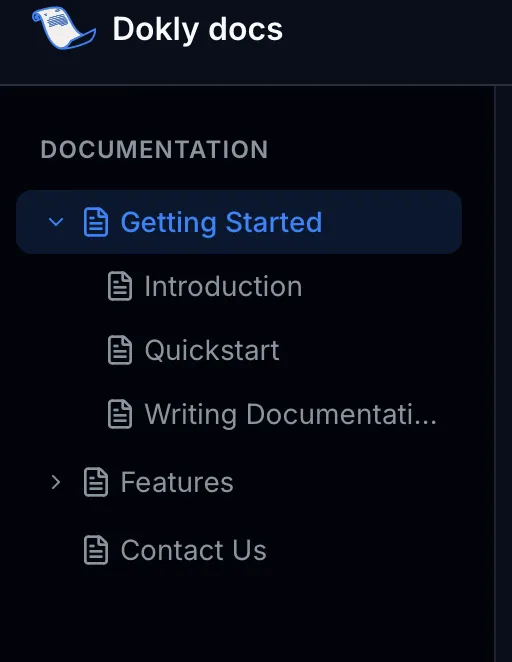
Navigation. Sidebar should show your top-level categories at all times. Breadcrumbs at the top of every article. A "Was this helpful?" widget at the bottom. That's it. Resist the urge to add featured articles, recent articles, and a recommended carousel — they all reduce findability of the article the user actually wants.
SEO (for public KBs). Each article should target one specific question. Title tag is the question, H1 matches, first paragraph answers it. Follow Google's helpful content guidelines — write for the person, not the algorithm. Add structured data for FAQs and how-tos. Most KB platforms do this automatically, but verify.
A simple test: Google a question your KB should answer. If your article isn't on page one within 60 days of publishing, the article isn't specific enough or the title doesn't match the actual search.
Build a maintenance system before you launch#
A knowledge base without a maintenance system is a 6-month project that produces 12 months of stale content.
Decide these four things on day one:
- Owner per article. Every article has one named owner. Not a team — one person. If they leave, reassign immediately.
- Review cadence. Every article gets a review date — 90 days for fast-moving products, 180 for stable areas. The owner gets a reminder. They either confirm "still accurate" or update it.
- Deprecation flow. When a feature dies, the article doesn't get deleted — it gets a banner ("This feature was retired in March 2026") and a link to the replacement. Deleting articles breaks links and tanks SEO.
- Analytics review. Once a month, look at: top viewed articles (are they good?), top searched terms with no result (write those articles), and articles with high views but low "was this helpful" scores (rewrite them).
The biggest signal you're failing
If your support team is still answering a question that has an article, the article isn't doing its job. Don't argue with the data — rewrite the article or move it somewhere users can actually find it.
Common mistakes that kill knowledge bases#
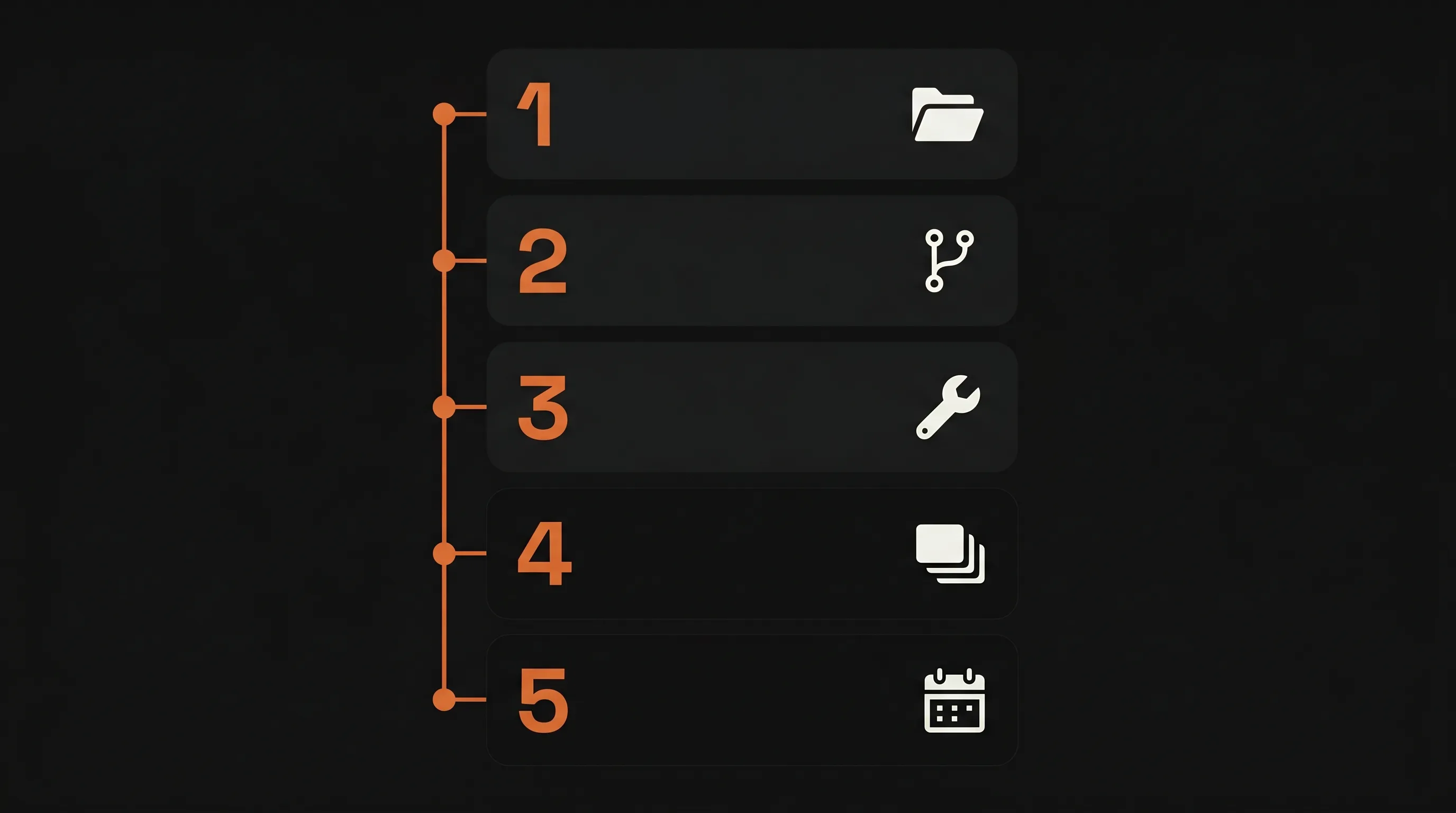
Five failure modes, in rough order of frequency:
- No owner. When everyone owns it, no one does. Articles go stale, search results lie, users stop trusting it. Fix: assign one human per article on day one.
- Too many categories. A 20-category sidebar is a sign you copied your org chart. Users don't think in your team structure. Fix: collapse to 5-8 categories built around user goals.
- Write-once mindset. "We launched the KB" is not a success metric. Articles drift the second your product changes. Fix: review cadence with a calendar reminder.
- Writing articles nobody asked for. Don't write the article on "advanced webhook configurations" before you've written "why aren't my webhooks firing." Fix: order your backlog by support ticket frequency.
- Burying the search bar. If the search input isn't the first thing visitors see on the homepage, redesign. Most people search; very few browse.
Frequently asked questions#
How long does it take to build a knowledge base?#
A minimum viable knowledge base — 10 to 15 well-written articles covering your top support questions — takes one focused week. A complete KB with full coverage of your product takes one to three months depending on team size. The trap is trying to launch with everything documented; ship the top 20% that handles 80% of questions, then expand based on what people actually search for.
Should our knowledge base be internal or public?#
If your goal is reducing support tickets or helping customers self-serve, make it public. If it contains internal processes, runbooks, or sensitive product info, keep it internal. Many companies run both: a public KB for customers and a separate internal wiki for the team. Don't try to make one KB serve both audiences — the tone, depth, and security needs are too different.
What's the difference between a knowledge base and documentation?#
Documentation is usually structured around your product's features and APIs. A knowledge base is structured around user problems and questions. A doc page might explain "the webhooks API"; a KB article explains "why aren't my webhooks firing?" Many teams need both, and the line blurs — but if you're writing reactively from support tickets, you're building a knowledge base.
How many articles do I need to launch?#
Ten to fifteen is enough to launch usefully. Start by listing the top questions your support team answers in any given week — those become your first articles. Avoid the urge to write articles nobody has asked for yet; you'll waste a week on content that ranks for nothing and helps no one.
How do I keep a knowledge base from getting outdated?#
Assign every article an owner, set a review date (every 90 or 180 days), and audit analytics monthly to find articles that are getting traffic but no positive feedback — those are usually wrong or out of date. The best signal is your support team: if they're still answering a question that has an article, the article isn't doing its job.
What's the cheapest way to start a knowledge base?#
Notion is free for small teams and works fine for internal use. For a public-facing knowledge base, Dokly's free plan covers one project with unlimited pages at $0 — significantly cheaper than Mintlify ($150+/month) or ReadMe ($99+/month) as of October 2026 — and Team ($99/month) adds a custom domain when you need one. The cheapest tool isn't always best, but for a first KB you don't need enterprise features.
Where to go from here#
Customer support KBs
Build a public knowledge base that deflects tickets.
Internal team wikis
Set up a wiki your team will actually use.
KB software comparison
Honest pricing for every major platform.
Custom domain setup
Host your KB on your own domain.
If you want to ship a public knowledge base this week without spending Mintlify money, try Dokly free — one project with unlimited pages on the free plan, $99/month for Team when you need a custom domain.